 By Sam Bakker, Founder of Communi
To navigate the Communi dashboard, use the left sidebar to move between your Community feed, Notifications, Chat, Courses, Events, Members, and Settings. Filter the feed by clicking a category, start a discussion with the black "+ New post" button, search anything from the top bar, and track top contributors on the right-hand Leaderboard.
Your dashboard is the full interface around your community feed. Everything you need is one click away — browsing categories, chatting in real time, and accessing your courses. This guide gives you a complete tour so you feel at home from day one.
A guided walkthrough of your dashboard
The dashboard brings your entire community into a single screen. Here is the full layout so you can see how the pieces fit together:
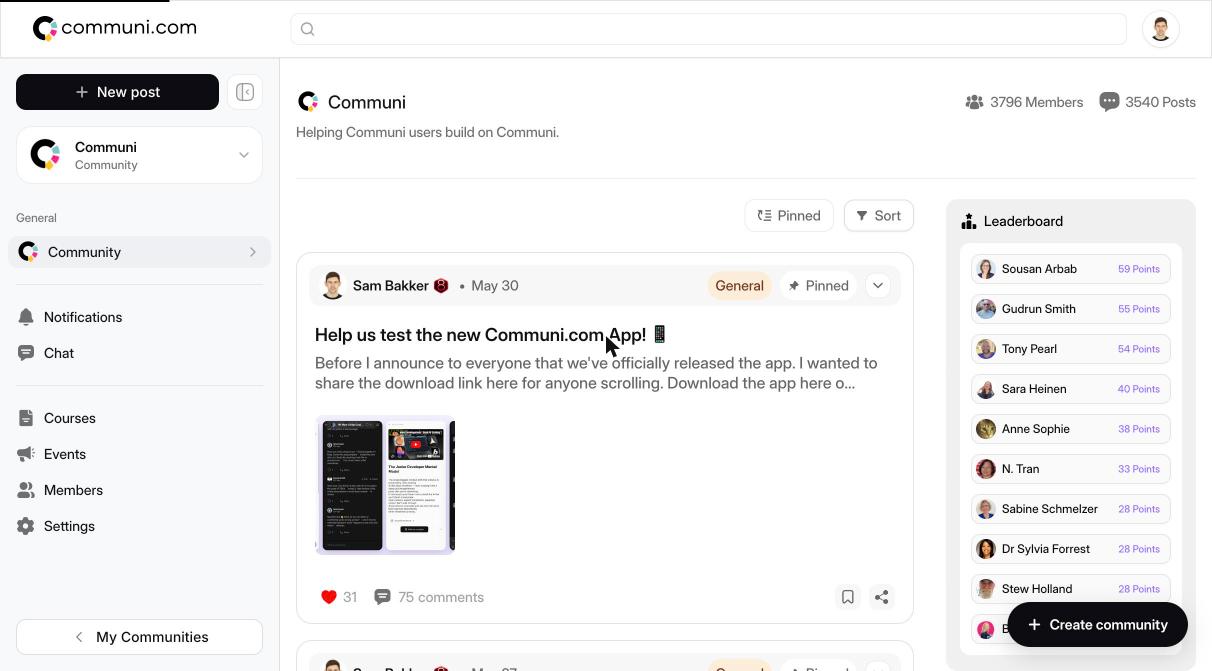
The heart of navigation is the left sidebar. It holds every major area of your community:
- Community — your home feed, organized into categories: All, General, Feature Requests, Updates, Office Hours, Bugs, Introduce Yourself, Success, and + Categories to add your own.
- Notifications — everything you've missed.
- Chat — real-time conversations.
- Courses — your learning content.
- Events — live sessions and office hours.
- Members — the people in your community.
- Settings — your controls and preferences.

At the top-left sits the black "+ New post" button — your starting point for any discussion, update, or question. Running across the top of the screen is a search bar that searches posts, members, and content in one place. And on the right panel, you'll find the Leaderboard of top contributors plus a link to your Community Guidelines.
Step-by-step: navigating your dashboard
- Look at the left sidebar. This is your main navigation. Everything in your community is reachable from here.
- Click a category (like General, Updates, or Office Hours) to filter the Community feed down to just those posts.
- Scroll the sidebar to reach Notifications, Chat, Courses, Events, Members, and Settings.
- Click the black "+ New post" button in the top-left to start a discussion, share an update, or ask a question.
- Use the search bar across the top to find posts, members, or any content instantly.
- Check the Leaderboard on the right panel to see your community's top contributors — and see the Community Guidelines link nearby.
Pro tips
- Start with a category. If the feed feels busy, click a single category first to focus on what matters right now.
- Introduce yourself early. The "Introduce Yourself" category is the fastest way to get noticed and welcomed.
- Search before you post. A quick search often surfaces an existing discussion you can join instead of starting a new one.
- Watch the Leaderboard. It's a great signal of who to learn from — and a fun nudge to stay active yourself.
Watch the full walkthrough
Prefer to see it in action? Watch the complete dashboard tour here: https://youtu.be/RPB-hBRBrBM
Ready to Build Your Own Community?
Communi is the all-in-one community platform — from $195/year with 0% platform fees. Unlimited members.
Start 30 day trialFrequently Asked Questions
How do I navigate the Communi dashboard?
Use the left sidebar as your main navigation. It links to your Community feed, Notifications, Chat, Courses, Events, Members, and Settings. From there, filter the feed with categories and search from the top bar.
Where is the New Post button?
The black "+ New post" button is in the top-left of the dashboard. Click it to start a discussion, share an update, or ask a question.
How do I filter the community feed?
Click any category in the sidebar under Community — such as General, Feature Requests, Updates, Office Hours, Bugs, Introduce Yourself, or Success — to filter the feed to just those posts.
Where can I see the top contributors?
The Leaderboard lives in the right-hand panel of the dashboard and shows your community's most active contributors, alongside a link to the Community Guidelines.
How do I search for posts or members?
Use the search bar that runs across the top of the dashboard. It searches posts, members, and content all in one place.